ChatGPT Image Generation Guide for Business Owners, Step by Step
Ever walked into a local printing press with a Diwali offer scribbled on paper? The owner asks the right questions straight away. What size? How many words? Paper or vinyl? A clear brief gets you a clean proof. A vague one gets three rounds of “bhaiya, thoda aur bada karo”.
ChatGPT image generation works the same way. It can make a festive post, a product background or a blog header in a few minutes, but only if you brief it like a good press owner would expect.
Here we walk through creating and editing images in ChatGPT, using only what OpenAI’s own help pages said on 13 November 2026. Features change often, so check those pages before a big campaign. Comparing tools first? See our free Bing Image Creator alternatives.
A clear brief gets you a clean proof.
Create your first image, step by step
OpenAI says ChatGPT Images “is available on all tiers”, including Free, on web, iOS and Android. Free users have a separate usage limit for image creation, and ChatGPT tells you when you reach it. OpenAI does not publish the number. Plus gets higher limits.
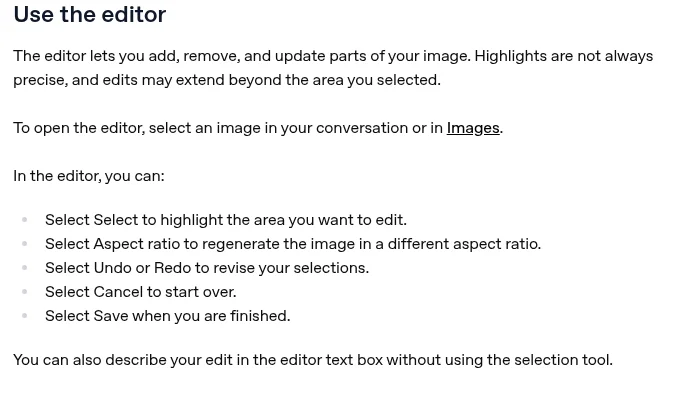
The screenshot below is from OpenAI’s public Images in ChatGPT help article, so you see what OpenAI itself says.
On the web:
Sign in to ChatGPT and open a new chat.
Type your brief in the message box, or open Images from the sidebar and enter your prompt there.
Send it. OpenAI says generation “may take a few minutes”, and you can keep chatting meanwhile.
On the mobile app, type the same brief in the chat, then tap the image to open it full screen and edit or share it.
OpenAI’s public Images help page, including the section on using the editor.
Say you run a namkeen shop in Indore. “Make a Diwali post” is vague. “A square Diwali post for a namkeen shop, a brass thali of sev and chakli, warm diya light, space at the top for the words ‘Diwali Offer'” is a press-ready brief.
Do this weekWrite one brief that names the size, the subject, the mood and any words you want.
Edit an image by selecting an area or just asking
You rarely get it right first time. There are two ways to fix it.
Just ask. Describe the change in the chat, for example “make the background deep maroon”. If the change is for one spot, name that spot.
Select an area. Click the image to open the editor, choose Select, highlight the part, then describe the change. Undo, Redo, Cancel and Save are there too.
Ask for a change, or mark the spot, then check the whole proof.
OpenAI says highlights “are not always precise” and edits may spread beyond your selection, so check the whole image after every edit.
On mobile, tap the image, choose Select, adjust the brush size with the slider, tap Next, then describe the change.
Do this weekTake one image and make two small edits, one by asking and one with Select.
Use your own photos and templates
You can upload an existing photo and describe what you want changed. For a saree boutique in Surat, that could mean keeping your product photo and asking for a festive background behind it.
Two more features help:
Saved references. Upload a photo and ask ChatGPT to save it as a reference with a name. Later, type @ and that name in a prompt to reuse it.
Templates. Open Images, select Templates, choose a category such as posters, and fill in your details. ChatGPT may ask follow-up questions.
Every image you create is saved automatically under Images, on web and mobile. Files also go into your Library on the web, with 500 MB of storage on Free. To delete an image, delete the chat it came from.
Do this weekUpload one real product photo and ask for a plain, uncluttered background.
Get the size, background and text right
Three things save the most back and forth:
Aspect ratio. OpenAI says you can generate “any aspect ratio”. Use the aspect ratio picker, or say it in your prompt, such as square for an Instagram post or tall for a WhatsApp status.
Transparent background. Ask for one when you want to place a product or graphic onto your own design.
Text in images. ChatGPT can follow instructions to add text. Keep it short, put the exact words in quotes, and read every letter before you use it, especially prices and dates.
A clear brief gets you a clean proof.
Create your first image, step by step
OpenAI says ChatGPT Images “is available on all tiers”, including Free, on web, iOS and Android. Free users have a separate usage limit for image creation, and ChatGPT tells you when you reach it. OpenAI does not publish the number. Plus gets higher limits.
The screenshot below is from OpenAI’s public Images in ChatGPT help article, so you see what OpenAI itself says.
On the web:
Sign in to ChatGPT and open a new chat.
Type your brief in the message box, or open Images from the sidebar and enter your prompt there.
Send it. OpenAI says generation “may take a few minutes”, and you can keep chatting meanwhile.
On the mobile app, type the same brief in the chat, then tap the image to open it full screen and edit or share it.
OpenAI’s public Images help page, including the section on using the editor.
Say you run a namkeen shop in Indore. “Make a Diwali post” is vague. “A square Diwali post for a namkeen shop, a brass thali of sev and chakli, warm diya light, space at the top for the words ‘Diwali Offer'” is a press-ready brief.
Do this weekWrite one brief that names the size, the subject, the mood and any words you want.
Edit an image by selecting an area or just asking
You rarely get it right first time. There are two ways to fix it.
Just ask. Describe the change in the chat, for example “make the background deep maroon”. If the change is for one spot, name that spot.
Select an area. Click the image to open the editor, choose Select, highlight the part, then describe the change. Undo, Redo, Cancel and Save are there too.
Ask for a change, or mark the spot, then check the whole proof.
OpenAI says highlights “are not always precise” and edits may spread beyond your selection, so check the whole image after every edit.
On mobile, tap the image, choose Select, adjust the brush size with the slider, tap Next, then describe the change.
Do this weekTake one image and make two small edits, one by asking and one with Select.
Use your own photos and templates
You can upload an existing photo and describe what you want changed. For a saree boutique in Surat, that could mean keeping your product photo and asking for a festive background behind it.
Two more features help:
Saved references. Upload a photo and ask ChatGPT to save it as a reference with a name. Later, type @ and that name in a prompt to reuse it.
Templates. Open Images, select Templates, choose a category such as posters, and fill in your details. ChatGPT may ask follow-up questions.
Every image you create is saved automatically under Images, on web and mobile. Files also go into your Library on the web, with 500 MB of storage on Free. To delete an image, delete the chat it came from.
Do this weekUpload one real product photo and ask for a plain, uncluttered background.
Get the size, background and text right
Three things save the most back and forth:
Aspect ratio. OpenAI says you can generate “any aspect ratio”. Use the aspect ratio picker, or say it in your prompt, such as square for an Instagram post or tall for a WhatsApp status.
Transparent background. Ask for one when you want to place a product or graphic onto your own design.
Text in images. ChatGPT can follow instructions to add text. Keep it short, put the exact words in quotes, and read every letter before you use it, especially prices and dates.
Brief it like a printing press: size, subject, mood and exact words.
Edit by asking in chat, or by selecting an area in the editor.
You can upload your own photos, ask for any aspect ratio and transparent backgrounds.
Images are saved under Images. Check text, avoid real people and logos, and treat every image as a proof.
FAQs
Is ChatGPT image generation free?
Yes, OpenAI says it is available on all tiers, including Free. Free users have a separate image limit, and OpenAI does not publish the number.
Can I edit just one part of an image?
Yes. Open the image, use Select to highlight the area, then describe the change. OpenAI says edits may spread beyond the selected area, so check the whole image.
Where are my ChatGPT images saved?
All images you create are saved under Images on web and mobile. To delete one, delete the chat where you made it.
Can I use ChatGPT images for my business?
OpenAI’s terms say you own the output, but similar outputs may go to others. Avoid real people, logos and brand names, and get advice for big campaigns.
Want a visual workflow that fits your brand?
We help founder-led businesses set up content and image workflows that save time. Talk to us through our form or on WhatsApp at +91 99131 53530. The first conversation is free.